

Billing and payments
ServersCamp is prepaid: you keep credits on the account and hourly usage is deducted from them. Credits come from card top-ups, and a new account gets EUR 10 to try the platform when a card is saved. This guide walks through the four steps from an empty account to a paid balance and a downloadable invoice.
Step 1: fill in billing details
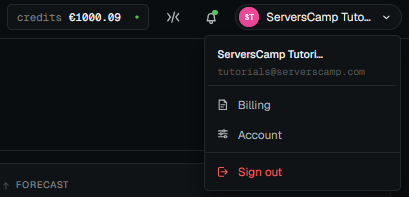
Open the Billing details tab. You get there from the credits pill at the top of the panel, or from Billing in the account menu.
Choose whether you pay as an individual or a company and fill in the address. These details are printed on every invoice, and they decide how VAT applies: the right column shows what a EUR 10 top-up would cost with your country and status. A company with a valid EU VAT ID pays without VAT under reverse charge. Use your real details: a card whose billing address does not match what the bank holds is the most common reason a payment is declined.
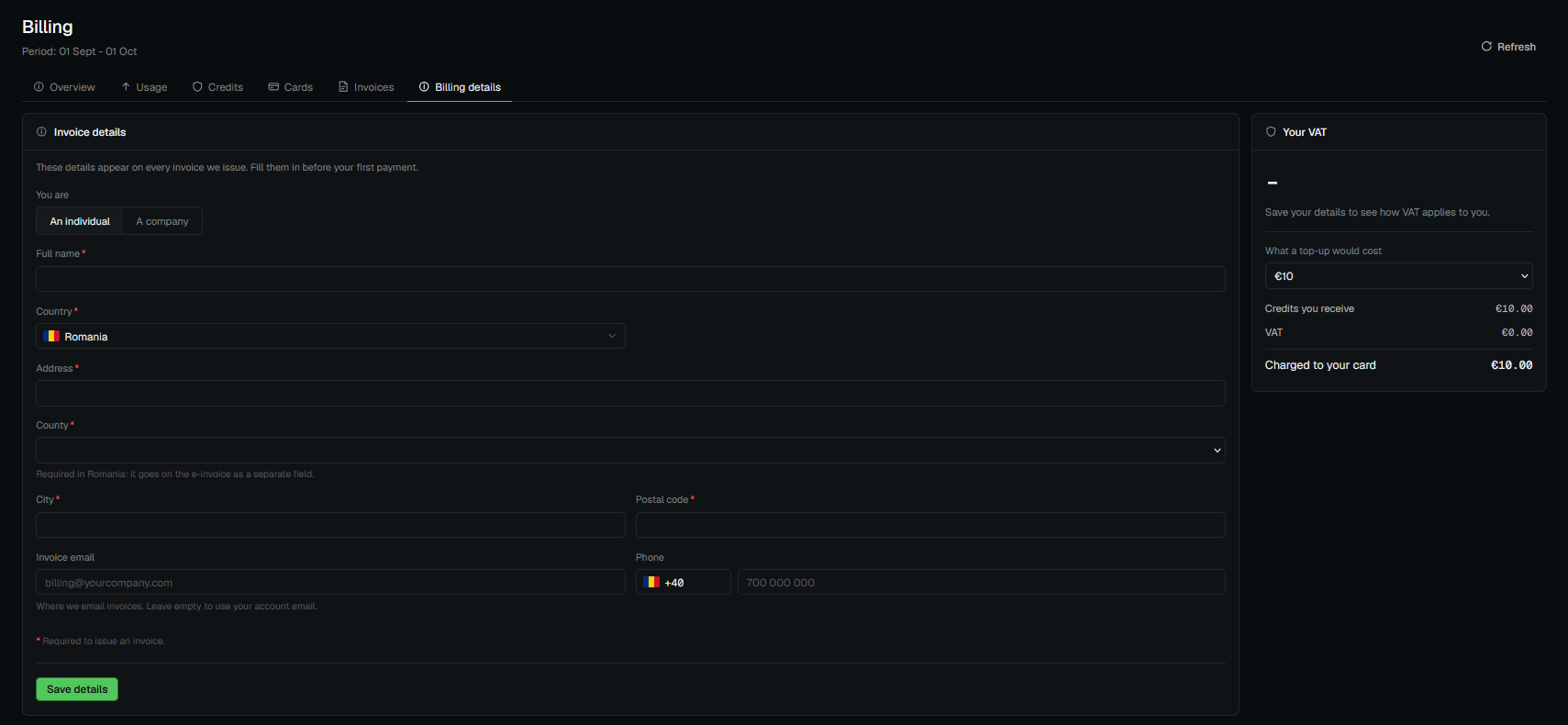
Press Save details. The form confirms the save and the VAT preview updates.
Step 2: save a card
Switch to the Payment methods tab and press Add card. If you came from the Add a card step of sign-up, the form is already open. Enter the card number, expiry and CVC, or let Link fill them in if you have used it before.
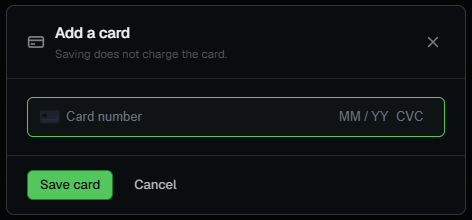
After Save card your bank may ask you to confirm the card, usually a push in the banking app. Some banks show this as a EUR 0.00 authorisation: nothing is charged. Once that is done, the card appears in the list.
Step 3: top up credits
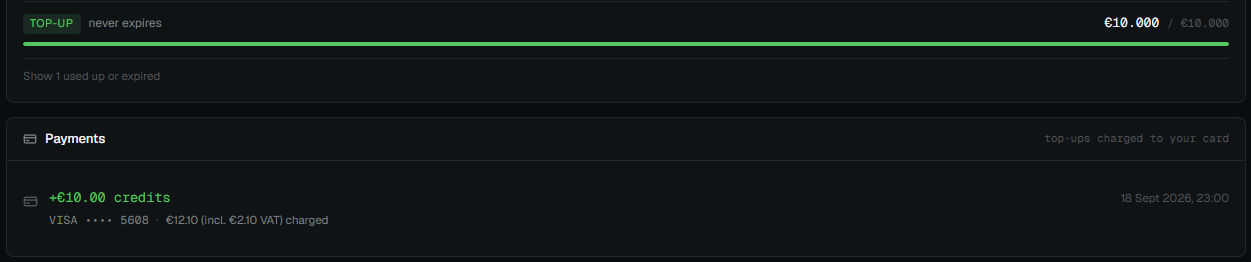
Open Billing and press Top up at the top of the page. Pick one of the presets or type an amount from EUR 10. The dialog shows the credits you receive, the VAT for your country and the exact amount that will be charged to the card before you confirm.
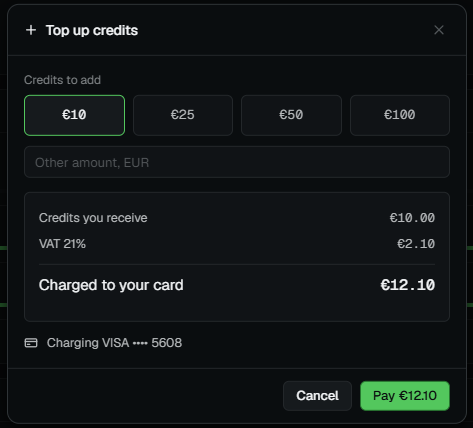
The charge happens only when you press Pay. A saved card is never charged on its own unless you switch on auto top-up, which is off by default. The credits land on the balance within a few seconds and show up under the Invoices tab.
Step 4: invoices
Every payment gets a fiscal invoice. It is emailed to your billing address as a PDF a few seconds after the payment clears, and it stays under the Invoices tab for download at any time.
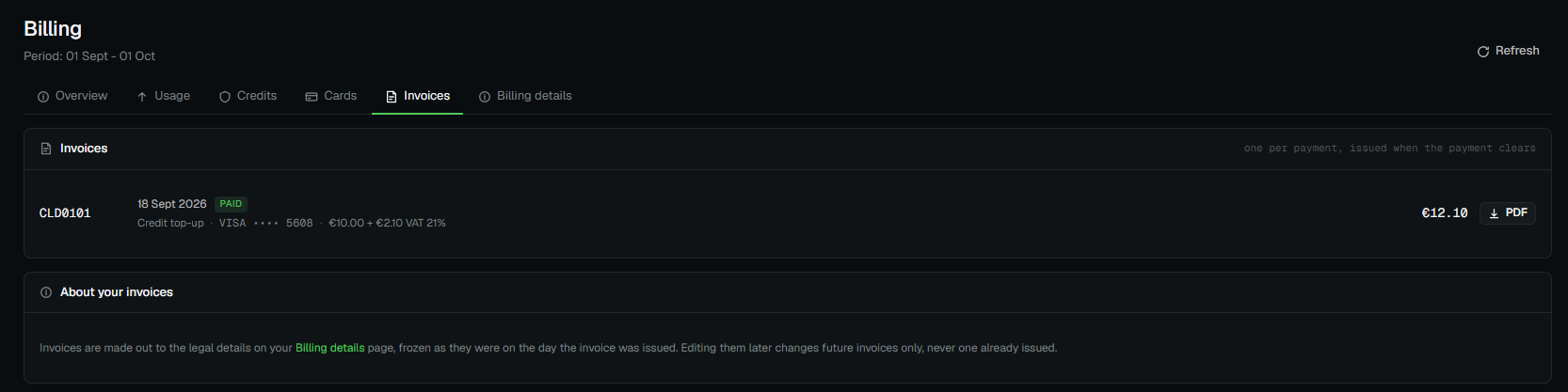
Invoices are made out to the billing details as they were on the day of the payment. Changing the details later affects future invoices only.
Where to look next
- Billing documentation: hourly pricing, what is billed and what is not, how credits are spent.
- Trying ServersCamp for free: the credit, the trial limits and how they come off.
- Create a VM: the next step once the balance is in place.